Windows
Complete download, installation, and basic setup of Arduino IDE on Windows for programming with the TinkerBlock kit. Outcome: IDE and CH340 driver ready; board and port selected correctly; Blink example uploads successfully and onboard LED blinks.
1. Requirements
- OS: Windows 7/10/11
- IDE: 2.x recommended (e.g. 2.3.x)
- Space: about 500MB–1GB
- Download: https://www.arduino.cc/en/software → choose Windows Win 10 or newer (64-bit) (one-click install); MSI installer and ZIP portable are also available
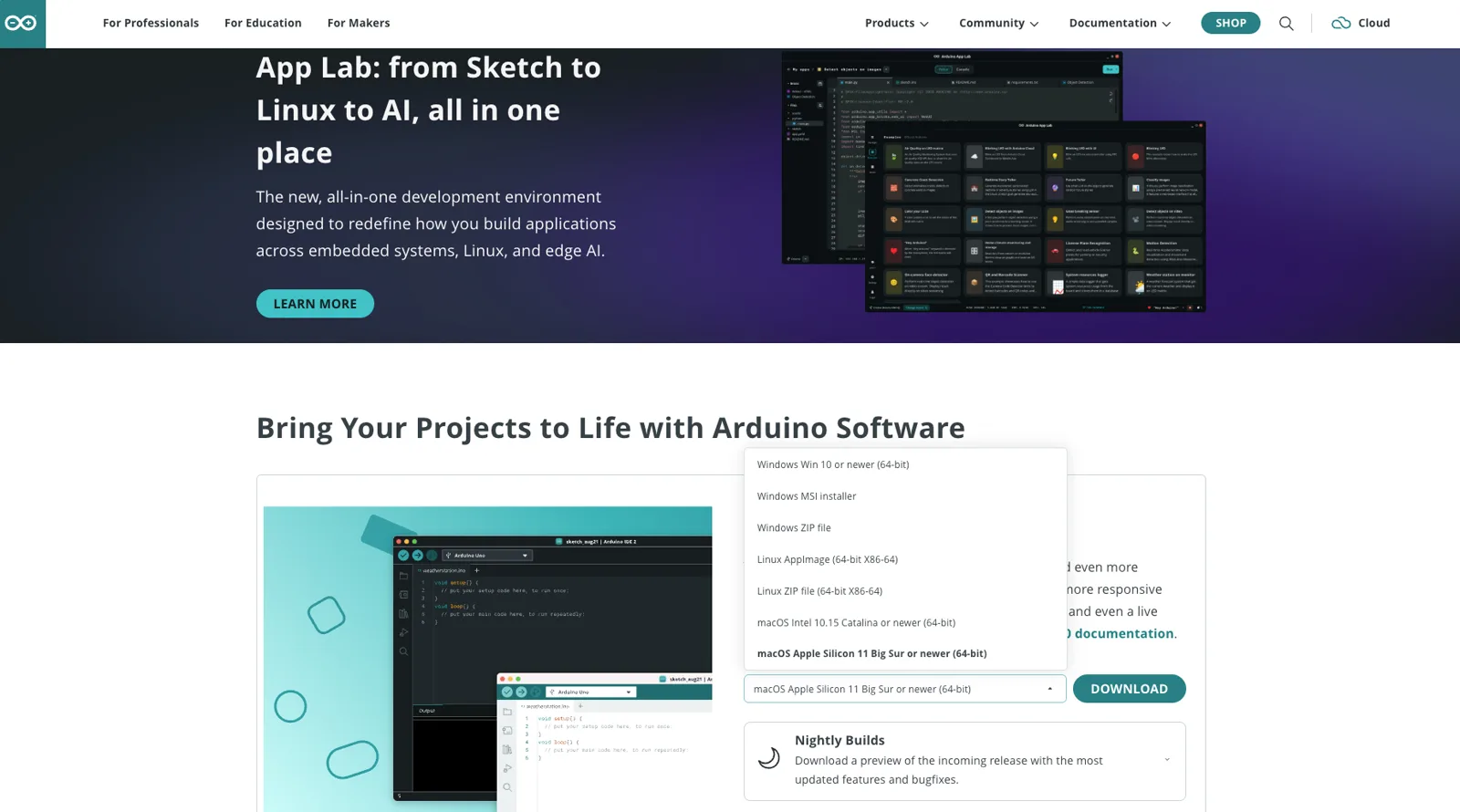
2. Installation
- Double-click the
.exe; when UAC prompts, choose Yes - Accept the agreement; path is best in English with no spaces (e.g.
D:\Arduino); you can check “desktop shortcut” - Install → Finish; if prompted to install drivers, choose Install
3. CH340 driver (required when board is not recognized)
Download (WCH site): CH341SER.EXE | ZIP | All drivers
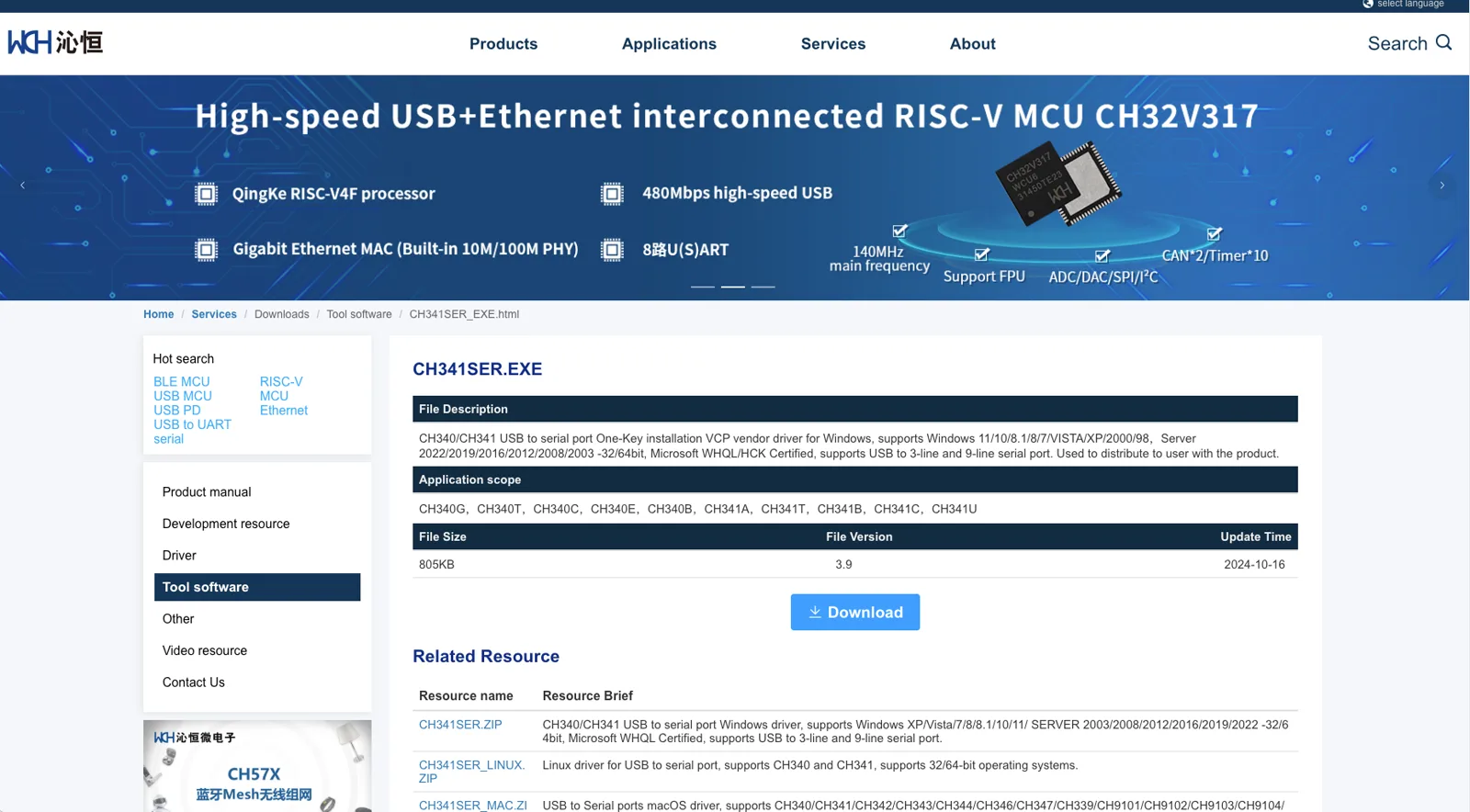
- Connect the board;
Win + X→ Device Manager → Ports (COM & LPT) - If there is no CH340 or WCH port (COMx) or there is a yellow warning: download and run the CH341SER installer
- Unplug and replug USB; confirm CH340 (COMx) or WCH (COMx) appears
4. Board and port
- Board: Tools → Board → Arduino AVR → Arduino Uno or Arduino Nano (for Nano, try Processor: ATmega328P or Old Bootloader)
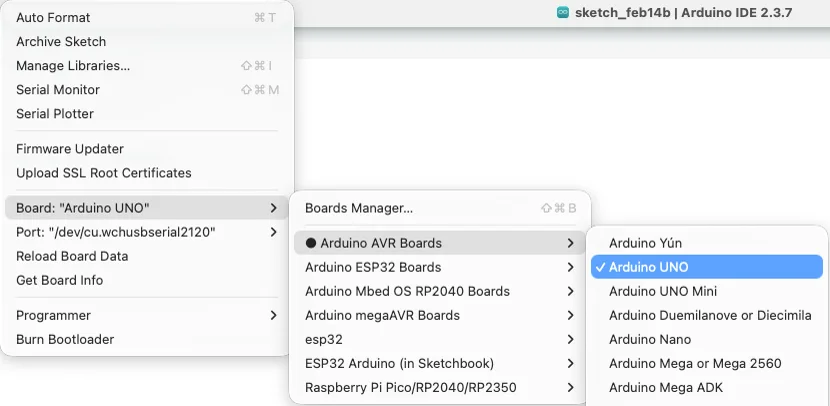
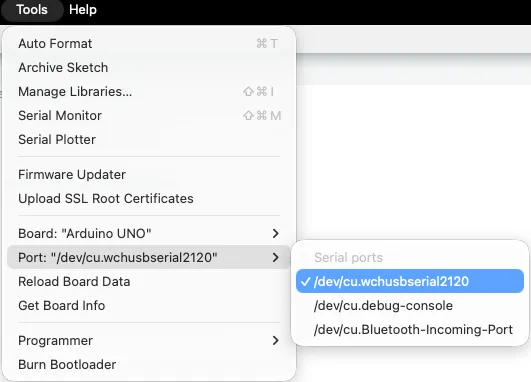
- Port: Tools → Port → select COMx; name may be USB-SERIAL CH340 or WCH etc. (same driver)
5. First verification
- File → Examples → 01.Basics → Blink
- Click Verify (✓); it should show “Done compiling”
- Click Upload (→); after success the onboard LED blinks about once per second
Proceed to Lesson 02.
macOS
Complete download, installation, and basic setup of Arduino IDE on macOS for programming with the TinkerBlock kit.
1. Requirements
- OS: macOS 10.14+
- IDE: 2.x recommended (e.g. 2.3.x)
- Space: about 500MB–1GB
- Download: https://www.arduino.cc/en/software → Apple Silicon choose Apple Silicon, Intel choose Intel
2. Installation
- Open the
.dmgand drag Arduino IDE into Applications - If the app is reported as “unverified” on first open: System Settings → Privacy & Security → Open Anyway
3. CH340 driver (required when board is not recognized)
Download (WCH site): CH341SER_MAC.ZIP | All drivers
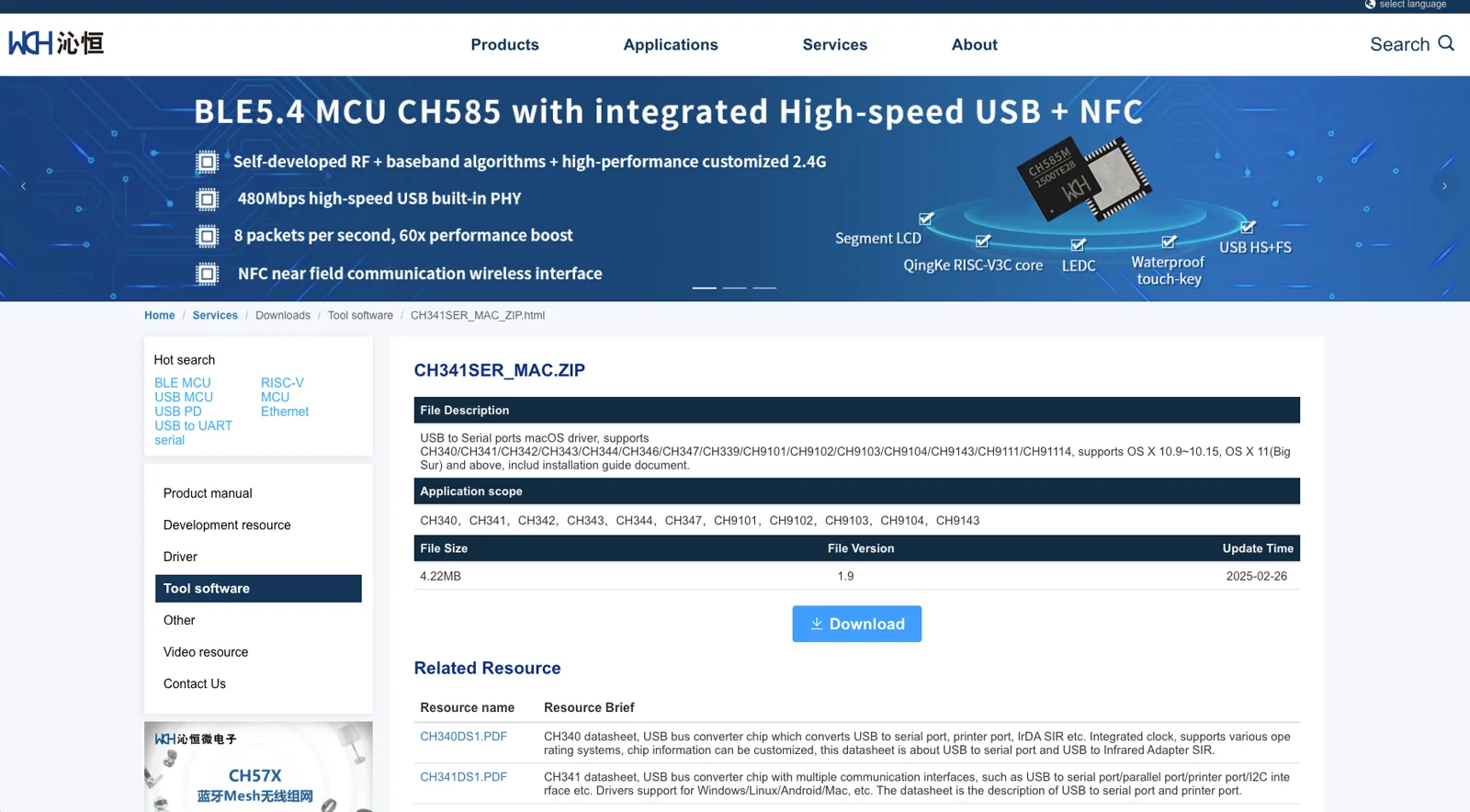
- Download and unzip; install according to the package instructions (.pkg)
- Allow extension (Catalina+): if you see “system extension blocked” or the device is still not recognized → System Settings → Privacy & Security → General → find the blocked software → Allow → enter password → restart Mac again
- Connect the board; in Terminal run
ls /dev/cu.usb*; you should see/dev/cu.usbserial-xxxxor similar
4. Board and port
- Board: Tools → Board → Arduino AVR → Arduino Uno or Arduino Nano (for Nano, try Processor: ATmega328P or Old Bootloader)
- Port: Tools → Port → select /dev/cu.usbserial-xxxx or /dev/cu.usbmodemxxxx (CH340/WCH often appear as cu.wchusbserial etc.)
5. First verification
- File → Examples → 01.Basics → Blink
- Click Verify (✓); it should show “Done compiling”
- Click Upload (→); after success the onboard LED blinks about once per second
Proceed to Lesson 02.
Edit this page — content/guides/tinkerblock-workshop/01-arduino-ide-installation-and-environment-setup.mdx
Discuss this article
Ask about this page. The answer stays here, on the page it belongs to, for whoever hits the same wall next.