This lesson uses: Arduino UNO R3 board, TinkerBlock TK59 Piezo-Ceramic Sensor module, jumper wires (or breadboard). Use analog input to read the piezo sensor; outcome: serial shows pressure/vibration value (0–1023); tapping or pressing increases the value.
1. Wiring
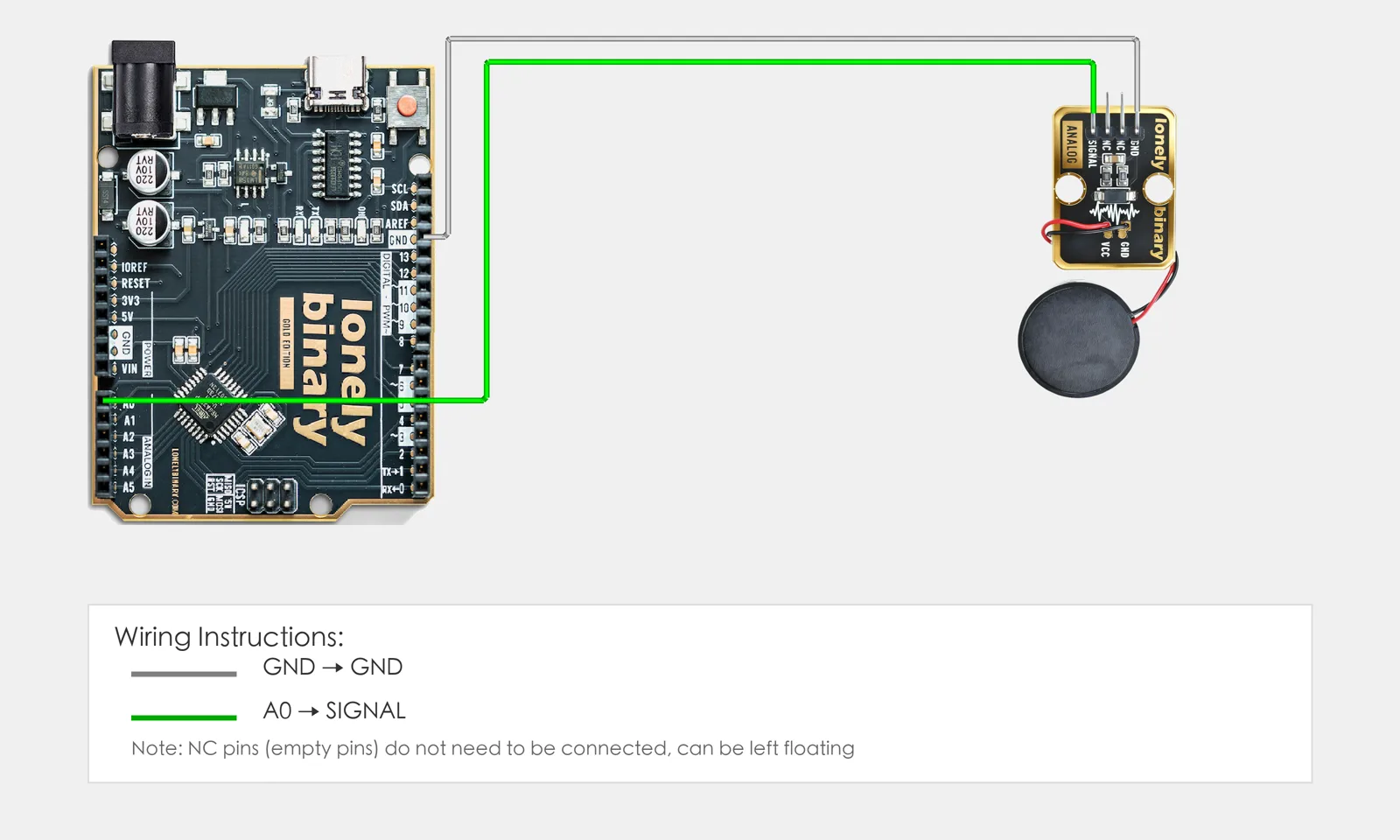
Connect TK59 Piezo-Ceramic Sensor to Arduino:
- GND → Arduino GND
- VCC → Arduino 5V
- SIGNAL → Arduino A0
- NC leave unconnected
2. New sketch
- Arduino IDE: File → New (or Ctrl/Cmd + N) to create a blank sketch
- Confirm board and port are selected (same as Lesson 01)
- Type the code below into the default
setup()andloop()yourself
3. Program structure
Same as last lesson: two fixed blocks setup() and loop().
setup(): Start serial; runs once.loop(): Keep repeating “read analog value → print to serial → wait → repeat”.
Tap or press the piezo and the serial value will jump—upload and try.
4. Code to write
Type the code below into setup() and loop() (do not copy-paste; typing it yourself helps you remember):
// Piezo sensor on A0; pressure/vibration changes output voltage, ADC 0-1023
#define PIEZO_PIN A0

void setup() {
  Serial.begin(9600);
  Serial.println("Piezo sensor program started");
}

void loop() {
  int val = analogRead(PIEZO_PIN);   // Read A0; more pressure/vibration = higher value
  Serial.print("Pressure: ");
  Serial.println(val);
  delay(100);   // Poll every 100 ms
}
Program notes
Overall idea: Piezo generates voltage when pressed or vibrated; the module conditions it and A0 reads it; higher value = stronger pressure/vibration. This lesson only prints the raw value; you can use it for thresholds or simple strength comparison.
| Code | In this lesson |
|---|---|
analogRead(PIEZO_PIN) | Read A0, 0–1023; higher usually = more pressure/vibration |
5. Hands-on
- After entering the code, click Verify (✓) to compile
- Click Upload (→) to upload to the board
- Open Serial Monitor (Tools → Serial Monitor, baud 9600)
- Watch serial: current pressure value
- Tap or press the sensor and see the value change
Expected result:
Serial monitor:
Piezo sensor program started
Pressure: 125
Pressure: 132
Pressure: 589
...
Tapping or pressing increases the value. As in the figure.
Note: TK96 Mechanical Key LED is different (key + LED); you can try it.
Proceed to Lesson 37.
Edit this page — content/guides/tinkerblock-workshop/36-piezo-sensor.mdx
Questions about this product
See what other owners have asked, and read their solutions.
Piezo-Ceramic Sensor
Loading discussions…
Discuss this article
Ask about this page. The answer stays here, on the page it belongs to, for whoever hits the same wall next.