This lesson uses: Arduino UNO R3 board, TinkerBlock TK17 Collision Sensor module, TinkerBlock TK01 XL LED module, jumper wires (or breadboard). Learn the collision sensor. Outcome: while the lever is pushed in the LED is on; let it go and the LED turns off.
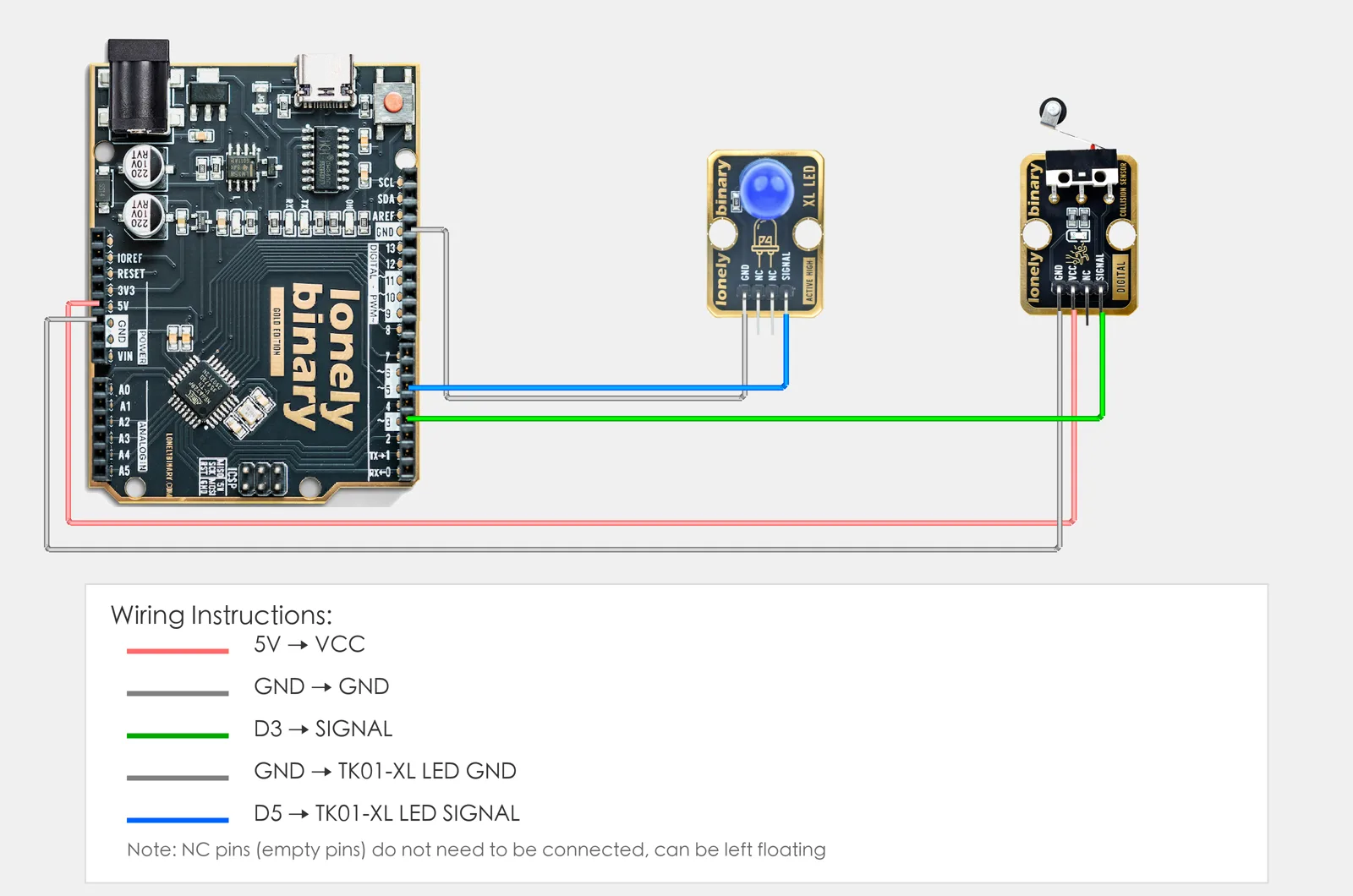
1. Wiring
- TK17 collision sensor: VCC → 5V, GND → GND, SIGNAL → D2, NC leave unconnected
- TK01 LED: GND → GND, SIGNAL → D13
2. New sketch
- Arduino IDE: File → New (or Ctrl/Cmd + N) to create a blank sketch
- Confirm board and port are selected (same as Lesson 01)
- Type the code below into the default
setup()andloop()yourself
3. Program structure
Same as last lesson: two fixed blocks setup() and loop().
setup(): Tell the board “pin 2 for reading the collision sensor, pin 13 for the LED”; runs once.loop(): Keep repeating “read pin 2 → if collision detected then LED on, else LED off → short delay”.
Type the code, upload, push the lever until it clicks and the LED turns on; let go and it turns off—that’s how collision detection is used.
4. Code to write
Type the code below line by line into setup() and loop() (do not copy-paste; typing it yourself helps you remember):
// Collision sensor on D2, LED on D13: SIGNAL is HIGH while the lever is pushed in
#define COLLISION_PIN 2
#define LED_PIN 13

void setup() {
  pinMode(COLLISION_PIN, INPUT);   // D2 read collision sensor
  pinMode(LED_PIN, OUTPUT);        // D13 control LED
}

void loop() {
  int state = digitalRead(COLLISION_PIN);   // HIGH while the lever is in

  if (state == HIGH) {
    digitalWrite(LED_PIN, HIGH);
  } else {
    digitalWrite(LED_PIN, LOW);
  }
  delay(50);   // short delay is enough since we read often
}
Program notes
Overall idea: Same as button and touch: digital input on D2; LED on when HIGH, off when LOW. TK17 is a lever switch with a 10 kΩ pull-down: SIGNAL is LOW at rest and HIGH while the lever is pushed in far enough to click. It senses contact, not vibration, and has nothing to adjust.
| Code | In this lesson |
|---|---|
digitalRead(COLLISION_PIN) | Read the switch: lever pushed in=HIGH, at rest=LOW |
if (state == HIGH) | If triggered then LED on, else off |
delay(50) | Short delay for both response and stability |
5. Hands-on
- After entering the code, click Verify (✓) to compile
- Click Upload (→) to upload to the board
- Collision detection:
Expected result:
Note: TK18 Hall Effect Sensor and TK41 Reed Switch are also on/off inputs, triggered by a magnet instead of a touch. The TK18 is active low: its SIGNAL goes LOW when a magnet is near, so the if is the other way round.
Proceed to Lesson 09.
6. Common issues
| Symptom | What to do |
|---|---|
| LED does not turn on after collision | Check TK17 wiring VCC→5V, GND→GND, SIGNAL→D2; check TK01 SIGNAL→D13, GND→GND; push the lever until it clicks: if the TK17's own red LED stays dark, VCC or GND is not connected |
| LED always on | Something is holding the TK17's lever in, or SIGNAL is wired to the wrong pin; check that nothing presses the lever |
Edit this page — content/guides/tinkerblock-workshop/08-collision-sensor.mdx
Questions about this product
See what other owners have asked, and read their solutions.
This page covers several products. Choose yours to see the right discussions.
Discuss this article
Ask about this page. The answer stays here, on the page it belongs to, for whoever hits the same wall next.