This lesson uses: Arduino UNO R3 board, TinkerBlock TK43 TP223 Touch Sensor module, TinkerBlock TK01 XL LED module, jumper wires (or breadboard). Learn the touch sensor. Outcome: when you touch the metal pad the LED turns on; when you leave it turns off; a light touch is enough.
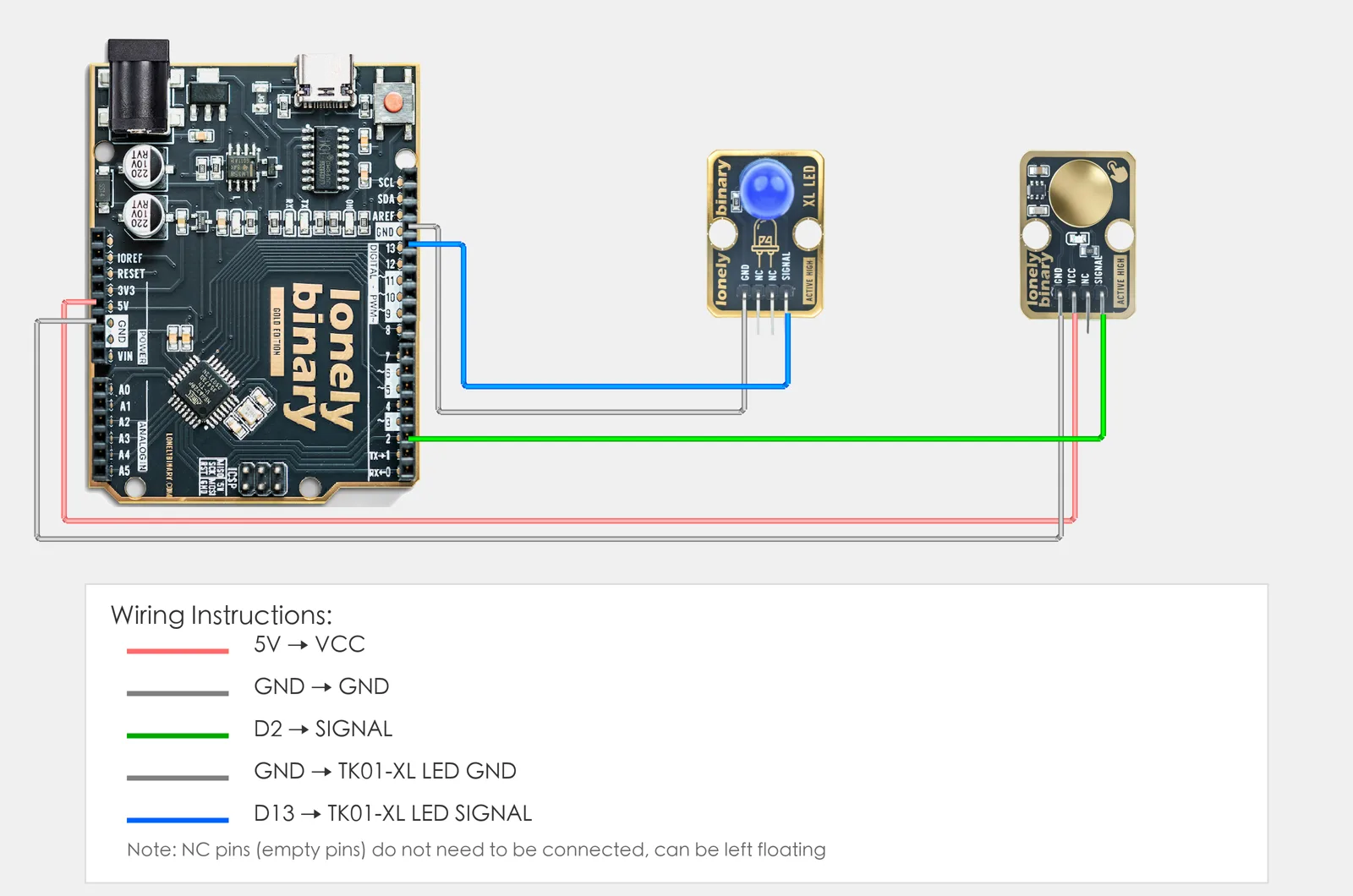
1. Wiring
- TK43 touch sensor: VCC → 5V, GND → GND, SIGNAL → D2, NC leave unconnected
- TK01 LED: GND → GND, SIGNAL → D13
2. New sketch
- Arduino IDE: File → New (or Ctrl/Cmd + N) to create a blank sketch
- Confirm board and port are selected (same as Lesson 01)
- Type the code below into the default
setup()andloop()yourself
3. Program structure
Same as last lesson: two fixed blocks setup() and loop().
setup(): Tell the board “pin 2 for reading the touch sensor, pin 13 for the LED”; runs once.loop(): Keep repeating “read pin 2 → if touched then LED on, else LED off → short delay”.
Touch the metal pad and the LED turns on; leave it and it turns off. Type the code in and you’ll see the effect.
4. Code to write
Type the code below line by line into setup() and loop() (do not copy-paste; typing it yourself helps you remember):
// Touch sensor on D2, LED on D13: output HIGH when metal pad is touched, LED on
#define TOUCH_PIN 2
#define LED_PIN 13

void setup() {
  pinMode(TOUCH_PIN, INPUT);   // D2 read touch sensor
  pinMode(LED_PIN, OUTPUT);    // D13 control LED
}

void loop() {
  int state = digitalRead(TOUCH_PIN);   // TK43 is HIGH when touched, LOW when not

  if (state == HIGH) {
    digitalWrite(LED_PIN, HIGH);
  } else {
    digitalWrite(LED_PIN, LOW);
  }
  delay(100);   // debounce
}
Program notes
Overall idea: Same as the button: read D2 level; HIGH = LED on, LOW = LED off. TK43 outputs HIGH when the metal pad is touched; no need to press hard.
| Code | In this lesson |
|---|---|
digitalRead(TOUCH_PIN) | Read touch state: touched=HIGH, not touched=LOW |
if (state == HIGH) | If touched then LED on, else off |
5. Hands-on
- After entering the code, click Verify (✓) to compile
- Click Upload (→) to upload to the board
- Touch control:
- Compare with Lesson 03’s normal button: the touch sensor doesn’t need a hard press, a light touch is enough
Expected result:
Proceed to Lesson 10.
6. Common issues
| Symptom | What to do |
|---|---|
| LED does not turn on when touching | Check TK43 wiring VCC→5V, GND→GND, SIGNAL→D2; check TK01 SIGNAL→D13, GND→GND; make sure you touch the metal pad directly with your finger |
| LED always on | Your finger or something may be touching the metal pad all the time; move it away and try again |
Edit this page — content/guides/tinkerblock-workshop/09-touch-sensor.mdx
Questions about this product
See what other owners have asked, and read their solutions.
This page covers several products. Choose yours to see the right discussions.
Discuss this article
Ask about this page. The answer stays here, on the page it belongs to, for whoever hits the same wall next.